
Using the Custom Booking Fields
One of the most powerful features in Easy!Appointments is the ability to add custom fields to your booking form. This allows you to collect additional information from your customers during the appointment process - beyond the standard name, email, and phone number. Whether you need to know a client’s hair color for a salon appointment, ask about dietary preferences for an event, or request vehicle details for a repair service, custom booking fields let you tailor the booking flow to your business needs.
Why Use Custom Booking Fields?
Custom fields help you:
- Personalize the experience - Gather information that allows you to better serve your customers.
- Improve efficiency - Ensure you have the right details ahead of time, reducing back-and-forth communication.
- Stay organized - Store all customer responses directly in your Easy!Appointments database, attached to their booking.
How to Add Custom Booking Fields
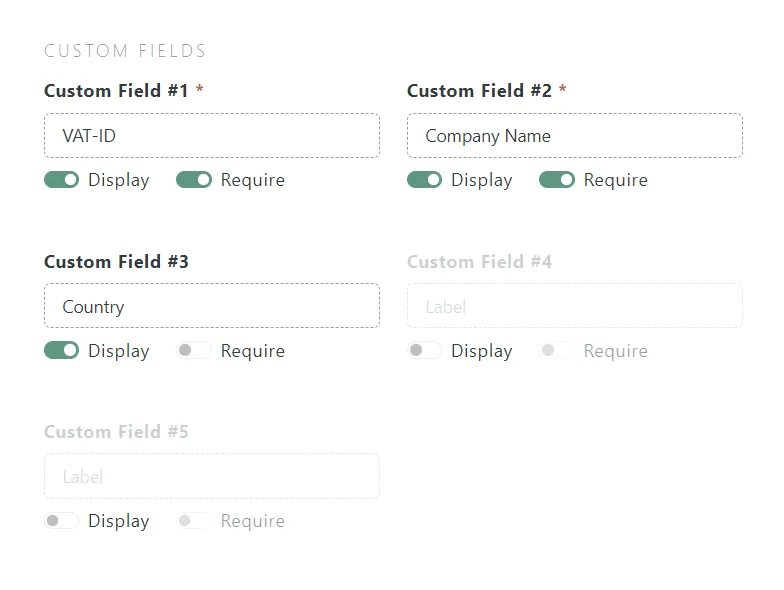
- Log in to the Admin Panel
Go to your Easy!Appointments installation and sign in with your admin account. - Navigate to Settings → Booking Settings
From the top menu, open the Settings section. Then you will find the Bookings Settings menu item. - Enable New Fields
Scroll down to the Custom Fields section where you will find the custom fields, ready to be activated- Field Label (Type the label in the input box)
- Display Switch (Toggle the display switch)
- Required Switch (Toggle the required switch if needed)
- Save Settings
Once saved, the field will appear in the booking form on your public booking page, but also in the calendar and customers page.
Viewing and Using Responses
When a customer books an appointment, their responses to custom fields will be saved along with their details. You can view this information:
- In the Calendar page of the Backend Section, in the appointments modal
- Inside the Customers page of the Backend Section, where customer-based fields are stored for future bookings
This way, your team always has the right information available before the appointment begins.
Examples of Custom Fields in Action
Here are a few practical ideas:
- Salon or Spa: Ask about preferred stylist, hair type, or allergies.
- Healthcare: Collect insurance provider or relevant medical history.
- Workshops: Ask about experience level or learning goals.
- Auto Services: Gather vehicle make, model, and year.
Best Practices
- Keep it simple - Only request the information you truly need.
- Appropriate labels - Use clear text for better responses.
- Mark essential fields as required - Ensure you never miss critical details.
Conclusion
Custom booking fields are a small feature that can make a big impact on your business workflow. By collecting the right information at the right time, you’ll streamline operations, improve customer satisfaction, and be fully prepared for every appointment.
If you haven’t tried custom fields yet, head over to your Easy!Appointments Admin Panel and set up your first one today!
Rather not run it yourself?
Managed Hosting runs Easy!Appointments on our servers or manages it on yours, with updates, backups and a reply from the core team within one business day. White label, support sessions and custom work are in the services.
Get Managed Hosting