Integrate with Drupal
With the Drupal module you can easily connect your Easy!Appointments installation with Drupal and display your booking page directly within your Drupal nodes and pages.

Your Drupal site, booking its own appointments
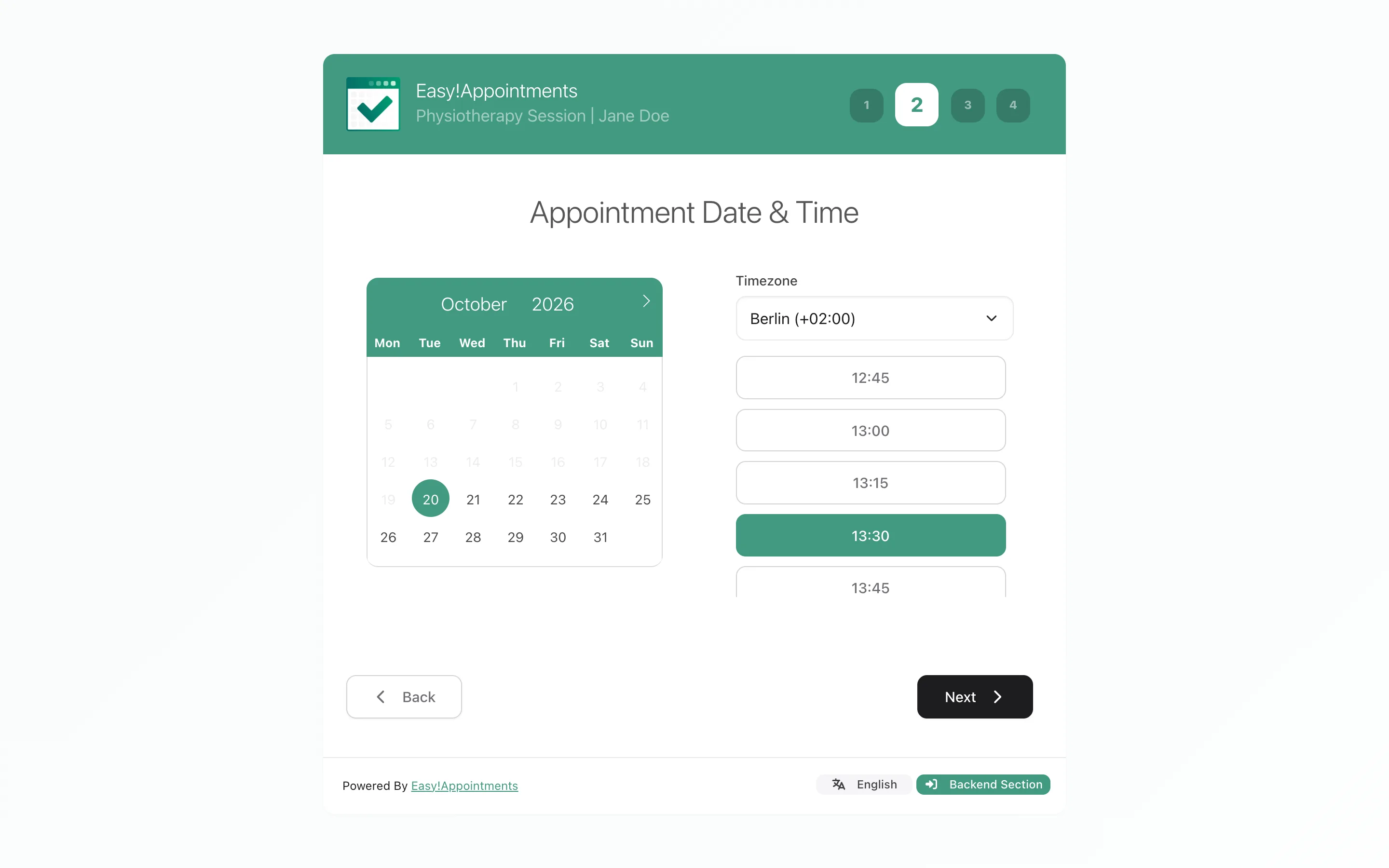
Visitors choose a service, a provider and a time without leaving your pages, and the confirmation email reaches both the customer and the provider on its own. No message thread to agree a time in, and no second place to keep your calendar.
How the module works
- A bridge, not a second scheduler
- You give the module the base URL of the Easy!Appointments installation you already run. Drupal displays that booking page; your services, providers and appointments stay in one system.
- It provides a block
- The module registers an "Easy!Appointments Block". You place it into a region from Structure > Block Layout, exactly like any other block on the site - there is no code to write.
- Drupal decides where it shows
- Because it is a block, Drupal's own visibility conditions govern which pages display the booking page. One placement can cover the whole site, or just the pages that take appointments.
- Responsive inside, fixed height outside
- The booking page itself adapts to desktop, tablet and mobile, and visitors never leave your site. The frame is a fixed 600px tall by default - set Iframe Height on the block if the wizard needs more room.
Setting up the Drupal module
A few steps, all in Drupal's own admin area. The heavier requirements belong to Easy!Appointments itself - get that running first and the Drupal side is a short job.
What you need in place
No installation yet? Easy!Appointments installs like any other PHP application. Read the installation guide.
- Drupal
- Drupal 10 or 11. The module declares core_version_requirement: ^10 || ^11.
- PHP
- Whatever your Drupal release needs - PHP 8.1 or newer for Drupal 10, 8.3 or newer for Drupal 11.
- Easy!Appointments
- A working installation, reachable in a browser. The add-on connects to one; it does not contain one.
- Easy!Appointments server
- Apache or Nginx, PHP 8.2 or newer and a MySQL database, with a writable "storage" directory.
- Same domain?
- Not required. With Easy!Appointments 1.6.1 or newer it can run on any domain or host.
The project page also carries Drupal's standard notice that this project is not covered by the security advisory policy, so review and update it as you would any uncovered contributed module.
Installing the module
-
Add the module
Download the module from the Drupal.org project page, which is also where version information and future updates live.
-
Install and enable it
Install and enable the module from the Drupal admin panel, the same way you enable any other contributed module.
-
Set the base URL
Go to Configuration > Web services > Easy!Appointments (/admin/config/easy-appointments) and enter the base URL of your Easy!Appointments installation.
-
Place the block
Go to Structure > Block Layout, click Place block in the region you want, then find and select Easy!Appointments Block. Add visibility conditions if the booking page should only appear on certain pages.
-
Test the booking flow
Load a page that shows the block and book a test appointment, then confirm it appears in your Easy!Appointments calendar.
Place the booking page as a block
Drupal has no shortcode syntax, and this module does not invent one. It exposes the Easy!Appointments Block instead, and blocks are placed into theme regions rather than pasted into a node body - so there is nothing to type into your content.
- Set the base URL once, under Configuration > Web services > Easy!Appointments.
- Go to Structure > Block Layout and click Place block in the region you want the booking page to occupy.
- Locate and select Easy!Appointments Block in the list of available blocks.
- In the block form, optionally set Iframe Width, Iframe Height, Provider ID, Service ID and Iframe Style.
- Optionally set visibility conditions so the block only renders on the pages that should take bookings.
The Drupal.org project page is the reference for the current version and its installation details. Drupal.org Project Page
Questions people ask first
If something does not line up
Most integration trouble is really Easy!Appointments configuration - a base URL, a working plan, a server setting. These are the places to look.
Documentation & FAQ
Installation, configuration and the settings reference, plus the known snags: a wizard showing no hours, a subdomain install, a timezone warning.
Browse the docs Read the FAQSupport
Ask the community, report a bug, or buy a session if you would rather someone else did the setup.
Support overview Ask on Discord Report an issue Book technical supportDrupal write-ups
Release notes and walkthroughs for this module, in the order you probably want them.
Latest improvements to the Drupal module New Drupal module available The Easy!Appointments ecosystem

Need it to work differently?
Add a feature Easy!Appointments does not have, or change how an existing one works, to fit the way you schedule.