Integrate with WordPress
With the WordPress plugin you can easily connect your Easy!Appointments installation with WordPress and display your booking page directly within your WordPress posts and pages.

Your WordPress site, booking its own appointments
Visitors choose a service, a provider and a time without leaving your pages, and the confirmation email reaches both the customer and the provider on its own. No message thread to agree a time in, and no second place to keep your calendar.
How the plugin works
- A bridge, not a second scheduler
- The plugin creates a bridge between the two systems. It stores the URL of the Easy!Appointments installation you already run and renders that booking page in place, so your services, providers and working plans stay in one database.
- The booking form in an iframe
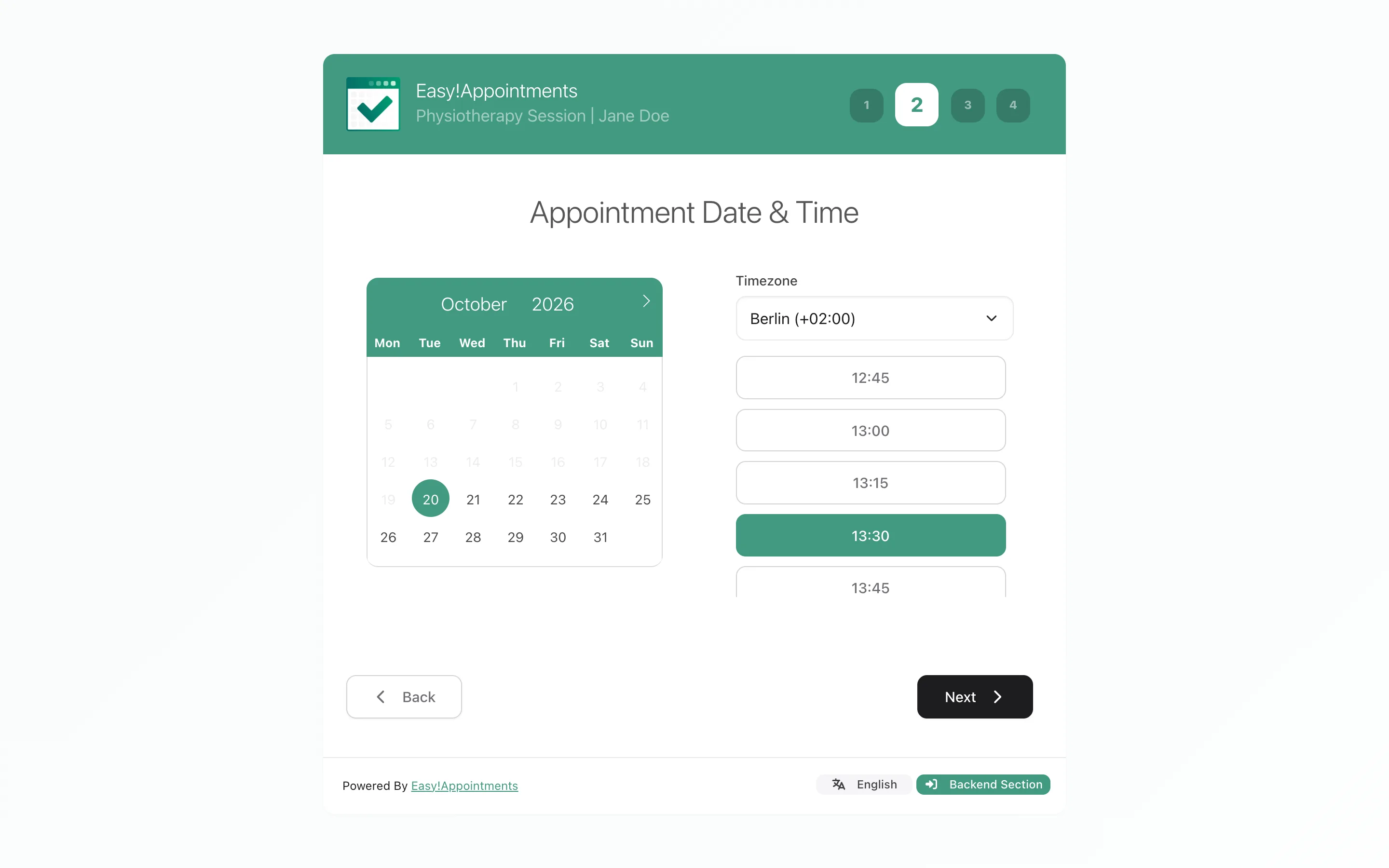
- The block, the Elementor widget and the shortcode all build an iframe that displays the Easy!Appointments booking form. The wizard runs from your Easy!Appointments server while the header, navigation and footer around it stay entirely yours.
- Nothing to keep in sync
- Because the page is loaded from your installation rather than copied into WordPress, a service you rename or a working plan you change is live on the next page load. There is no import step and no second copy of your data.
- Tuned page by page
- Optional width and height settings size the frame, and provider and service settings preselect a record, so a page about one treatment can open the wizard already set to it.
Setting up the WordPress plugin
A few steps, all in WordPress's own admin area. The heavier requirements belong to Easy!Appointments itself - get that running first and the WordPress side is a short job.
What you need in place
No installation yet? Easy!Appointments installs like any other PHP application. Read the installation guide.
- WordPress
- Version 5.0 or higher, per the WordPress.org plugin listing.
- Easy!Appointments
- A working installation, reachable in a browser. The add-on connects to one; it does not contain one.
- Easy!Appointments server
- Apache or Nginx, PHP 8.2 or newer and a MySQL database, with a writable "storage" directory.
- Same domain?
- Not required. With Easy!Appointments 1.6.1 or newer it can run on any domain or host.
Version numbers move with every release. Treat the WordPress.org listing as the authority for the current version and the WordPress releases it has been tested against.
Installing the plugin
-
Install the plugin
The plugin is in the official plugin repository, so you can install it straight from your Plugins dashboard. If you would rather do it by hand, upload the plugin files into wp-content/plugins yourself.
-
Activate it
Activate Easy!Appointments on the Plugins screen. A new Easy!Appointments item appears in the admin menu.
-
Connect your installation
Open it, paste the URL of your Easy!Appointments installation and click Connect.
-
Embed and test
Add the Easy!Appointments block (or the Elementor widget, or the [easyappointments] shortcode) to any post or page, publish it, then walk through a real booking to confirm the appointment lands in your Easy!Appointments calendar.
Three ways to place the booking form
The plugin ships an Easy!Appointments block for the block editor, an Easy!Appointments widget for Elementor, and the [easyappointments] shortcode for everything else. All three render the same iframe and take the same options: width, height, provider and service.
[easyappointments]
[easyappointments width="100%" height="500px"]
[easyappointments provider="2" service="1"]- Block editor: click +, search "Easy!Appointments" and drop the block in. Width, height, provider and service are in the settings panel on the right.
- Elementor: search "Easy!Appointments" in the widget panel and drag it onto the canvas. The same options are normal Elementor controls.
- Anything else - classic editor, WPBakery, Divi, a widget area: use the shortcode below, wherever shortcodes work.
- Provider and service take record IDs. Read them in the Easy!Appointments backend, on the Users and Services pages, from each record's dedicated link.
- width, height and style are all optional. The frame is 100% wide and at least 1000px tall unless you change it.
| Attribute | Example | What it does |
|---|---|---|
width | 100% | Optional. Width of the iframe the plugin renders. |
height | 500px | Optional. Defaults to 1000px, and acts as the minimum height. |
style | border: 5px solid #1A865F; | Optional. Inline CSS on the iframe. |
provider | 2 | Preselects a provider by record ID. |
service | 1 | Preselects a service by record ID. |
The WordPress.org listing states the WordPress versions the current release is tested against. WordPress.org Plugins
Questions people ask first
If something does not line up
Most integration trouble is really Easy!Appointments configuration - a base URL, a working plan, a server setting. These are the places to look.
Documentation & FAQ
Installation, configuration and the settings reference, plus the known snags: a wizard showing no hours, a subdomain install, a timezone warning.
Browse the docs Read the FAQSupport
Ask the community, report a bug, or buy a session if you would rather someone else did the setup.
Support overview Ask on Discord Report an issue Book technical supportWordPress write-ups
Release notes and walkthroughs for this plugin, in the order you probably want them.
How to set up the WordPress plugin Connecting WordPress, step by step The Easy!Appointments ecosystem

Need it to work differently?
Add a feature Easy!Appointments does not have, or change how an existing one works, to fit the way you schedule.