Administrator Guide
FAQ
How do I check that my server has Apache, Php and MySQL already installed?
Easy!Appointments is a php application and needs a web server (Apache, NGINX or Caddy) with php (v8.2+) and mysql installed. Apart from that, the php curl, json, mbstring, gd, simplexml and fileinfo extensions need to be enabled. To check if your server fullfils the needed prerequisites you will need to either contact the web hosting company or create a php file on your web root directory with the content and then access it from the web (eg “phpinfo.php” >> “http://domain-name.com/phpinfo.php“). This url will display all the server details.
How do I create a Google Calendar API key?
Google needs to authorize the usage of its services, so you need to create API credentials for your Easy!Appointments installation. In order to do that you will need a Google account. When logged in, go to the Google Cloud Console and create a new project. Enable the Calendar API service and then head to the APIs & Services → Credentials menu item. There, you will need to create a new OAuth client ID. The last step is to enter a valid redirect URL for the authorization process. This is very important because if the redirect URL is wrong, you will not be able to use the Google synchronization feature on your installation. For your redirect URL enter https://your-domain.com/easyappointments/index.php/google/oauth_callback (replace the domain name and the path to the Easy!Appointments installation folder with your own values). The index.php/ segment is part of the URL - leaving it out is the most common reason the authorization fails. Since v1.6 you can also set the Client ID and Client Secret from the backend, under Settings → Integrations → Google Calendar, instead of editing config.php.
Installation Page Is Not Working
Various users have reported on the support group that they cannot complete the installation successfully. This is primarily because of two reasons: (a) either the config.php file was set incorrectly, or (b) the server settings will not allow AJAX calls to complete and so the installation never finishes. For the first situation, check that you have properly set the BASE_URL constant to the URL of the installation folder, for example https://easyappointments.org/ea-installation. Then ensure that your database connection credentials are correct. In the second situation the things are more complex. Users have stated that in some web hosts you need to change the .htaccess file in order for the application to work (htaccess snippet provided below). If this does not work then check the Apache error log and open the browser JavaScript console after you press the “Install Easy!Appointments” button. There you will find information about what is going wrong with your installation. Contact your hosting company and ask them to resolve these issues.
.htaccess
RewriteEngine On
RewriteCond %{REQUEST_FILENAME} !-f
RewriteCond %{REQUEST_FILENAME} !-d
RewriteRule ^(.*)$ index.php?/$1 [L]
Booking Wizard Won’t Display Any Hours
This issue comes when the customer is on the appointment book wizard but he is not seeing any available appointment hours and he cannot continue either. If your installation has this problem check the apache error log and open the browser’s javascript console to find any issues. This is definetely a server issue and can only fixed by contacting your hosting company. It has to do with your server settings not letting Easy!Appointments run correctly. Normally you or the web hosting company will be able to find what needs to be changed in order to solve the issue.
Booking Wizard Displays “There are no available appointment hours for the selected date. Please choose another date.” … Even though there are available time periods in my plan.
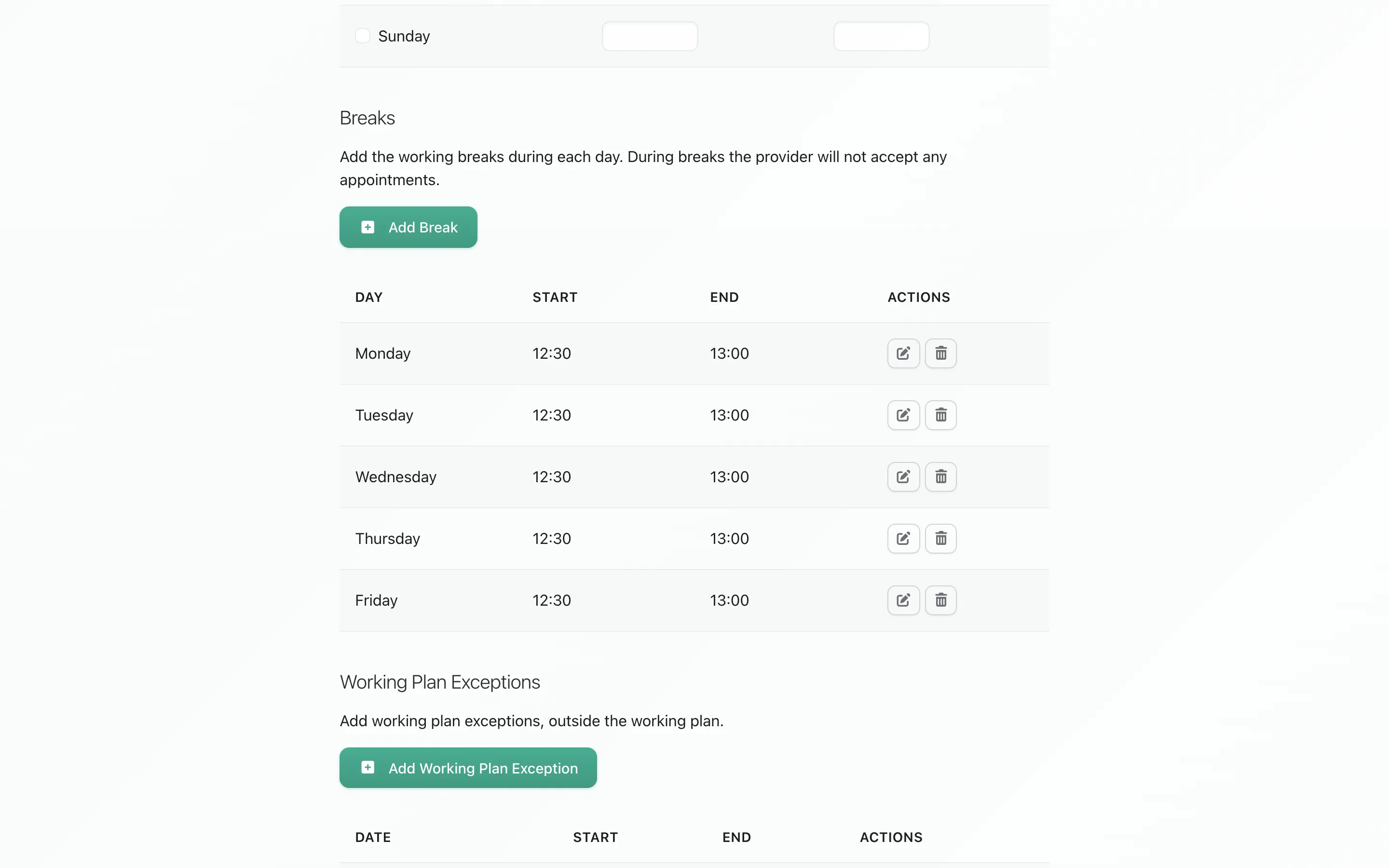
This is not actually an issue but it happened to a user and it was indeed confusing to resolve. A clean installation of E!A has some default settings such as the default working plan that contains some breaks too during the working days. This was set this way in order for you to see how can a working plan be like and set. So if you add a service that lasts for several hours (eg. 3~4 hours) then because of the default breaks new appointments will not fit in any empty time period of your calendar and thus the customer will not be able to book appointments with you. So if your services last for long you will need to change the working plan of your providers too so new appointments will fit into their schedule.
Installing E!A on Subdomain Won’t Load Appointment Hours
If you want to install Easy!Appointments on a subdomain you will have to use the subdomain URL in your config.php file and not the initial URL directory. For example, if you have the subdomain https://book.mysite.com where Easy!Appointments resides and this subdomain maps onto https://mysite.com/book, you will have to set BASE_URL to https://book.mysite.com in your config.php file, otherwise you will get a No ‘Access-Control-Allow-Origin’ error and you will not get any available appointment hours on the booking page.
Change the gap of the available hours of the booking wizard to 60 minutes (or similar).
The default gap between the available appointment hours is 15 minutes. Since v1.6 this is a setting, not a patch: open the backend, edit the service, and set the Slot Interval (Minutes) field to 60 (or whatever suits the service). Each service carries its own value.
DateTime::__construct(): It is not safe to rely on the system’s timezone settings…
You get this warning because PHP is not configured with a timezone setting. This is a very important setting especially for Easy!Appointments, cause otherwise you might get into trouble with the appointment hours. After installing the application, make sure that the php.ini “date.timezone” setting has the correct value depending your location. You can find a list of the available timezone settings on php.net. If you cannot modify your php.ini file, set the Default Timezone under Settings > General Settings in the backend - the application applies it on every request.
How do I use Caddy instead of Apache?
If you prefer Caddy as your web server:
- Install Caddy.
- Install PHP-FPM:
sudo apt install php-fpm - Place Easy!Appointments in a folder, for example
/var/www/html/easyappointments. - Add this to
/etc/caddy/Caddyfile:
easyappointments.example.com {
        root * /var/www/html/easyappointments
        encode gzip zstd
        php_fastcgi unix//run/php/php-fpm.sock
        file_server
}- Restart Caddy:
sudo systemctl restart caddy.service
Last updated