User Manual
Application Settings
Easy!Appointments provides a range of configurable settings that let you tailor the system to your business needs. These settings are accessible through the Administrator Panel and control general behavior, calendar behavior, customer options, and email notifications.
Accessing the Settings Panel
- Log in as an Administrator.
- Go to the Admin Panel.
- Click on the Settings tab.
General Setting
| Setting | Description |
|---|---|
| Company Name | The name displayed in email notifications and the booking page. |
| Company Email | The default “From” address for outgoing system emails. |
| Company Link | URL displayed on customer-facing communications. |
| Company Logo | Image shown on the booking page, in the notification emails and elsewhere in the app (max 2MB). |
| Company Color | Brand color applied across the app. Reset returns to the default. |
| Theme | The visual theme of the app, picked from the bundled themes. |
| Date Format | How dates are displayed: DMY, MDY or YMD. |
| Time Format | How times are displayed: 12-hour (H:MM AM/PM) or 24-hour (HH:MM). |
| First day of week | Any of the seven days can be set as the first day in the calendar UI. |
| Default Language | Sets the default language for users and the booking page. |
| Default Timezone | Controls appointment time calculations and syncing. |
Email settings are configured in
application/config/email.phpand not in the Admin Panel.
Business Logic
| Setting | Description |
|---|---|
| Working Plan | Select which days of the week appointments can be booked. |
| Blocked Periods | Block entire periods defined as closed dates for all providers |
| Allow Rescheduling/Cancellation Before | Define the timeout (in minutes) before the customers can book or re-arrange appointments with the company. |
| Future Booking Limit | Set the future limit in days customers can make appointments via the public booking page. |
| Appointment Status Options | Define a list of available appointment status options that can be used in the calendar page (the first one will automatically become the default value). |
Booking Settings
| Setting | Description |
|---|---|
| Toggle Fields | Select which fields are displayed and if they are optional or required |
| Custom Fields | You can add up to 5 custom fields for customers |
| Customer Notifications | Defines whether the customer will receive email notifications whenever there is a schedule change on one of his appointments. |
| Limit Customer Access | If enabled, providers and secretaries will only be able to access customers they have an appointment with. |
| CAPTCHA | When enabled, a CAPTCHA step guards the public forms - booking and updating an appointment, login and password recovery. Since v1.6 the built-in random string is not the only option: ALTCHA is available as a privacy-friendly alternative that needs no third-party service. |
| Any Provider | The booking page will get an additional option that allows customers to book without specifying a provider. |
| Login Button | Defines whether the login button is being displayed in the booking page. |
| Delete Personal Info | Defines whether customers are offered the option to remove all their appointments and personal information from the system. |
| Disable Booking | The booking page will be disabled for as long as this setting is active and customers will not be able to register new appointments. |
Legal Contents
| Setting | Description |
|---|---|
| Cookie Notice | Show a cookie notice on the booking page, with your own content. |
| Terms & Conditions | Show terms and conditions that customers accept when booking, with your own content. |
| Privacy Policy | Show a privacy policy that customers accept when booking, with your own content. |
| Legal Notice | URL of your legal notice page. |
| Imprint | URL of your imprint page. |
| Data Retention | Number of days after which customer data is deleted. Set to 0 to disable deletion. The deletion only happens when php index.php console cleanup runs, so schedule it with a cron job. |
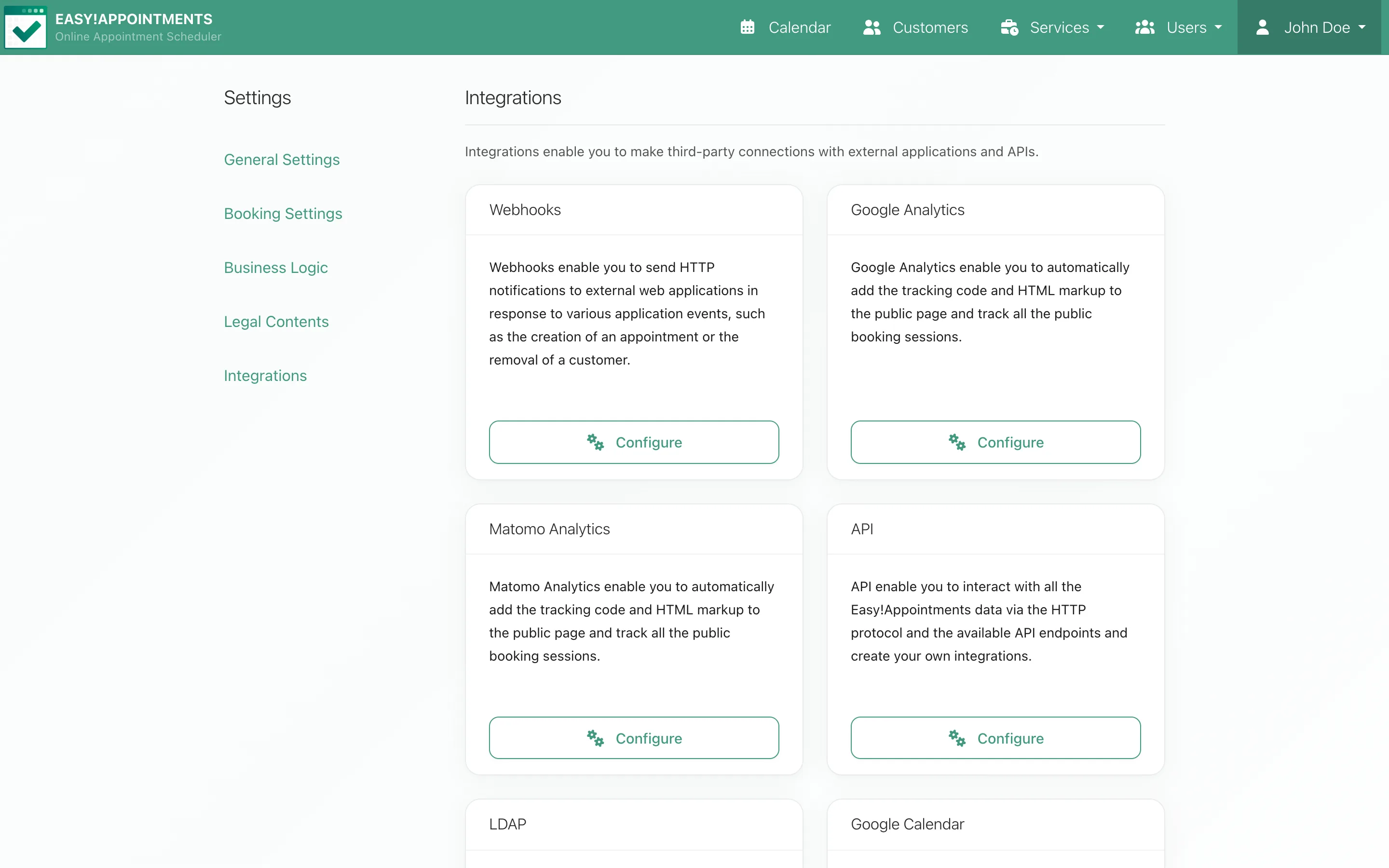
Integration Settings (Advanced)
| Setting | Description |
|---|---|
| Webhooks | Notify external URLs when records are saved or deleted |
| Google Analytics | Google based analytics tracking |
| Matomo Analytics | Matomo based analytics tracking |
| API | Configure the Easy!Appointments REST API |
| LDAP | SSO and user import via LDAP |
| Google Calendar | Credentials for the Google Calendar sync |
| CalDAV | Calendar sync with CalDAV servers |
| Jitsi | Jitsi Meet video meetings for appointments |
| ALTCHA | Privacy-friendly CAPTCHA alternative for the public forms |
Saving & Testing Settings
- After making changes in the Admin Panel, click Save.
Related Files
- Admin panel configuration is stored in the database.
- Email, language, and advanced settings are stored in:
application/config/email.phpapplication/language/your_language/
Last updated