User Manual
Initial Configuration
After successfully installing Easy!Appointments, the next step is to configure the system to fit your business needs. The initial configuration involves setting up essential parameters such as company details, services, providers (staff), working hours, and general system preferences.
This section will walk you through each part of the initial configuration process.
1. Accessing the Admin Panel
To begin the configuration:
- Open the backend link in your browser:
https://url/to/index.php/calendar - Log in using the administrator credentials created during installation.
The booking page also shows a Backend link at the bottom, unless the Login Button booking setting hides it.
2. System Settings
In the Settings > General Settings section, you can define your business’s global preferences, some of which are:
- Company Name: Enter your business name. This will be used in customer-facing communications.
- Company Email: Default sender email address for notifications.
- Time Zone: Set your local time zone for accurate appointment scheduling.
- Date & Time Format: Choose how dates and times are displayed throughout the platform.
- Language: Select the default language for the system interface.
Tip: These settings apply globally. Individual providers can have separate working hours and availability.
3. Adding Services
Navigate to Services > Add Service to define the types of appointments your business offers:
- Name: Service name (e.g., Haircut, Consultation, Massage).
- Duration: Length of the service (e.g., 30 minutes).
- Price and Currency: Optional - the price shown for the service. The currency is set per service; there is no global currency setting.
- Color: Choose a color for the calendar view to easily identify the service.
Repeat this step for each type of service your business offers.
4. Creating Provider (Staff) Accounts
Go to Users > Providers and add a new provider for each team member:
- Name and Email: Used for notifications and internal communication.
- Assigned Services: Select which services each provider can perform.
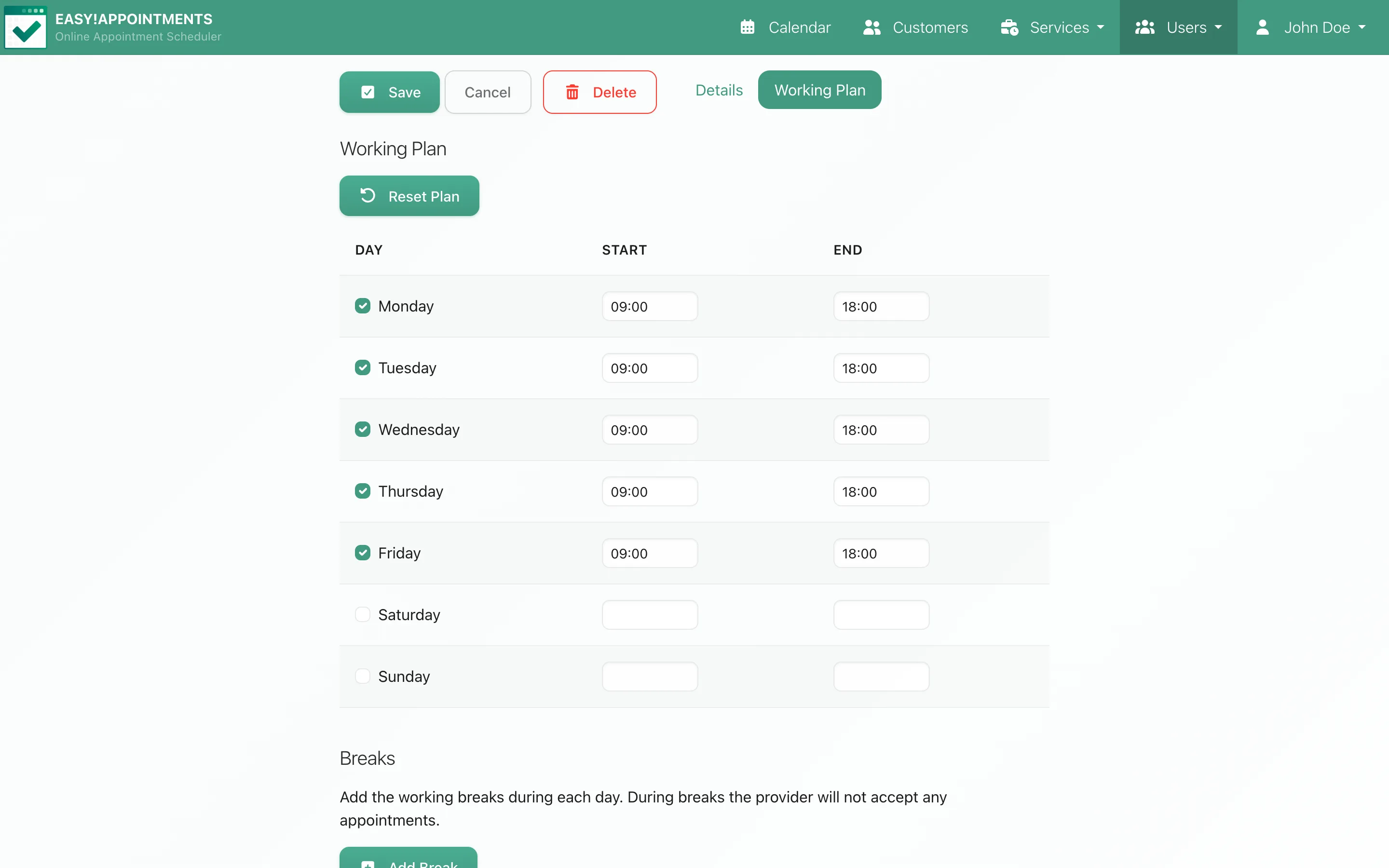
- Working Plan: Set weekly working hours and any specific days off.
- Breaks: Add lunch or other scheduled breaks.
Each provider will receive their own login credentials and calendar.
5. Customizing Availability and Scheduling Rules
In the Settings > Business Logic section, you can fine-tune scheduling behavior, some of which are:
- Allow Rescheduling/Cancellation Before: The timeout in minutes before an appointment within which customers can no longer book, reschedule or cancel it.
- Future Booking Limit: How many days into the future bookings can be made.
- Appointment Status Options: Define the available status options for your installation.
6. Testing Your Configuration
Once everything is set:
- Log out of the admin panel.
- Visit the public booking page as a customer.
- Try to book a test appointment to ensure services, availability, and notifications are working as expected.
Next Steps
After completing the initial configuration, you’re ready to start managing real appointments. We recommend continuing to the following sections:
- Using the Calendar
- Customer Management
- Services & Providers
Last updated