Administrator Guide
LDAP Integration
Easy!Appointments supports LDAP (Lightweight Directory Access Protocol) authentication, allowing your staff and administrators to log in using credentials from a central directory such as Active Directory or OpenLDAP. This is especially useful for organizations that want centralized user management and single sign-on (SSO) capabilities.
LDAP is only available for staff and admin users. Customers still use the public booking form and do not require LDAP credentials.
Benefits of LDAP Integration
- Centralized account management
- Improved security and password policy enforcement
- Seamless login experience for employees
- Supports Active Directory and OpenLDAP
Prerequisites
Before enabling LDAP authentication:
- You must have an operational LDAP server (e.g., Microsoft Active Directory).
- Easy!Appointments must be able to connect to the server (network/firewall access).
- LDAP credentials and connection details must be known (host, base DN, etc.).
- The PHP
ldapextension must be installed and enabled on the server.
Getting the Configuration Right
Firstly, you will find the LDAP configuration in the Integrations section, under the Settings menu. In this page, you can define the connection information of your LDAP server and establish a connection with Easy!Appointments.
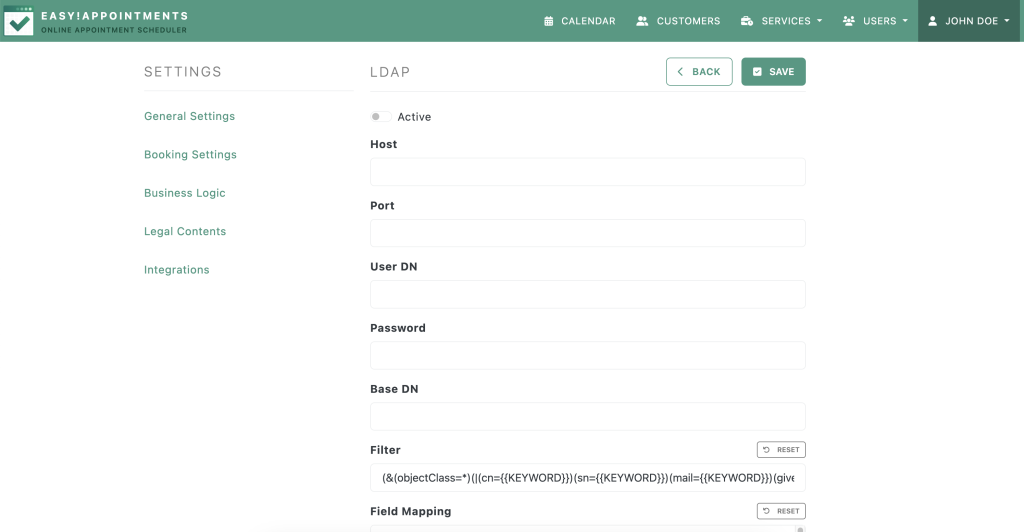
Moreover, once the connection is established, you can start searching and importing user accounts into Easy!Appointments, while assigning them a user role. These users will now be present in the app and can log in with their LDAP credentials.
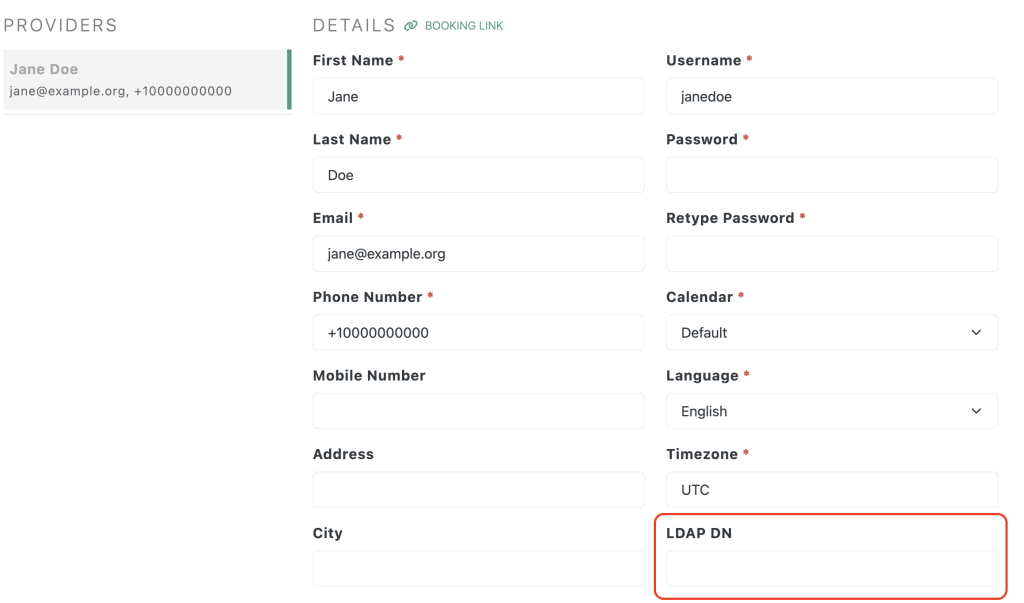
Alternatively, you can modify existing users and assign them the LDAP DN value, so that Easy!Appointments can find them during the login process.
Try the Login Page
After the connection is completed and the users are imported/matched, you will be able to use the login page with the LDAP credentials. The important part is that the username is matching the Easy!Appointments user, something that happens automatically if the user was imported through the LDAP configuration page.
Connection settings
Settings → Integrations → LDAP holds the connection itself:
| Setting | Description |
|---|---|
| Host | Your LDAP server address, for example ldap.example.org. For LDAPS, include the scheme: ldaps://ldap.example.org. |
| Port | 389 for LDAP, 636 for LDAPS. |
| User DN | The account Easy!Appointments binds with, for example cn=admin,dc=example,dc=org. |
| Password | That account’s password. |
| Base DN | Where the user search starts, for example dc=example,dc=org. |
| Filter | Which entries a search returns. The {{KEYWORD}} placeholder is replaced with whatever you type in the search box. |
Field mapping
The field mapping tells Easy!Appointments which LDAP attributes fill which fields when a user is imported. It is a JSON object:
{"first_name": "givenname", "last_name": "sn", "email": "mail", "phone_number": "telephonenumber", "username": "cn"}This is the default mapping. Write the attribute names in lowercase: PHP’s LDAP extension returns every attribute name lowercased, so givenName would never match.
The username must match
At login Easy!Appointments first looks the user up by their Easy!Appointments username, then binds to LDAP with the LDAP DN stored on that user record and the password that was typed in. The username itself is never sent to LDAP. With the default mapping the username is filled from the LDAP cn attribute on import.
A user without a stored LDAP DN, or a username that does not exist, fails the login with a generic “invalid credentials” message, which looks identical to a wrong password. Users imported through the LDAP page get the DN automatically; users you match by hand need it set.
Security Tips
- Use LDAPS (
ldaps://host, port 636) to encrypt credentials during transmission. StartTLS is not supported. - Ensure only read-only service accounts are used for binding to LDAP.
- Rotate the bind account password regularly.
Last updated