User Manual
Booking and Managing Appointments
Easy!Appointments provides a flexible and user-friendly system for both customers and staff to book, view, and manage appointments. This section explains how appointments are scheduled, how providers can manage their calendars, and how the admin can oversee all bookings.
1. Booking an Appointment (Booking Page)
Customers can book appointments directly from your public booking page without needing to register. The process is simple:
Steps to Book:
- Select Service: The customer chooses a service from the available list.
- Select Provider: (Optional) The customer selects a specific provider, or optionally the system can pick one.
- Pick a Date and Time: Based on the provider’s availability and booking rules.
- Enter Customer Details:
- Name
- Phone
- Notes (optional)
- … Other fields as configured
- Confirm Appointment: The system shows a confirmation message and optionally sends a confirmation email.
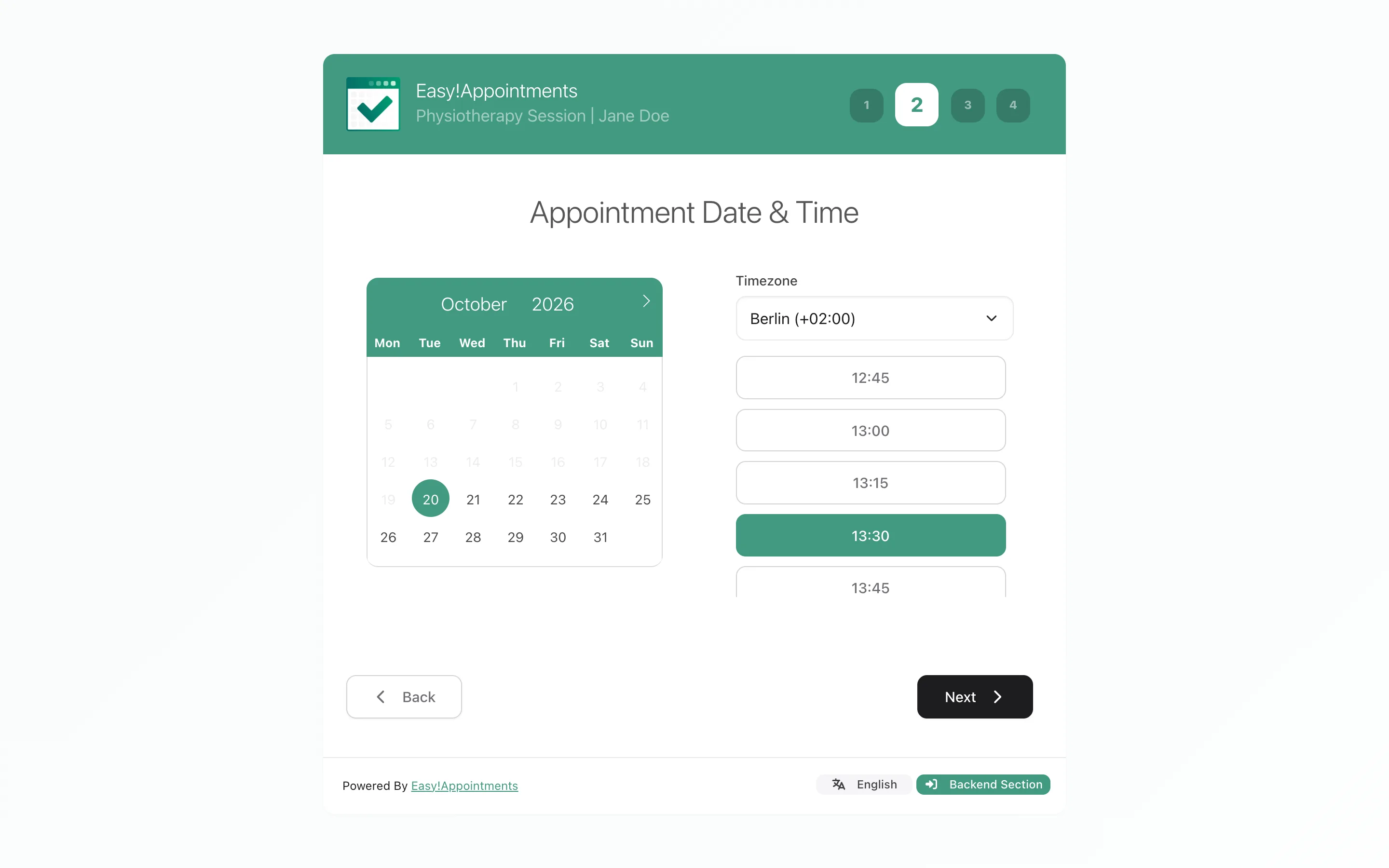
If enabled, customers will receive an email with the appointment details and rescheduling/cancellation link.
2. Viewing Appointments (Calendar Page)
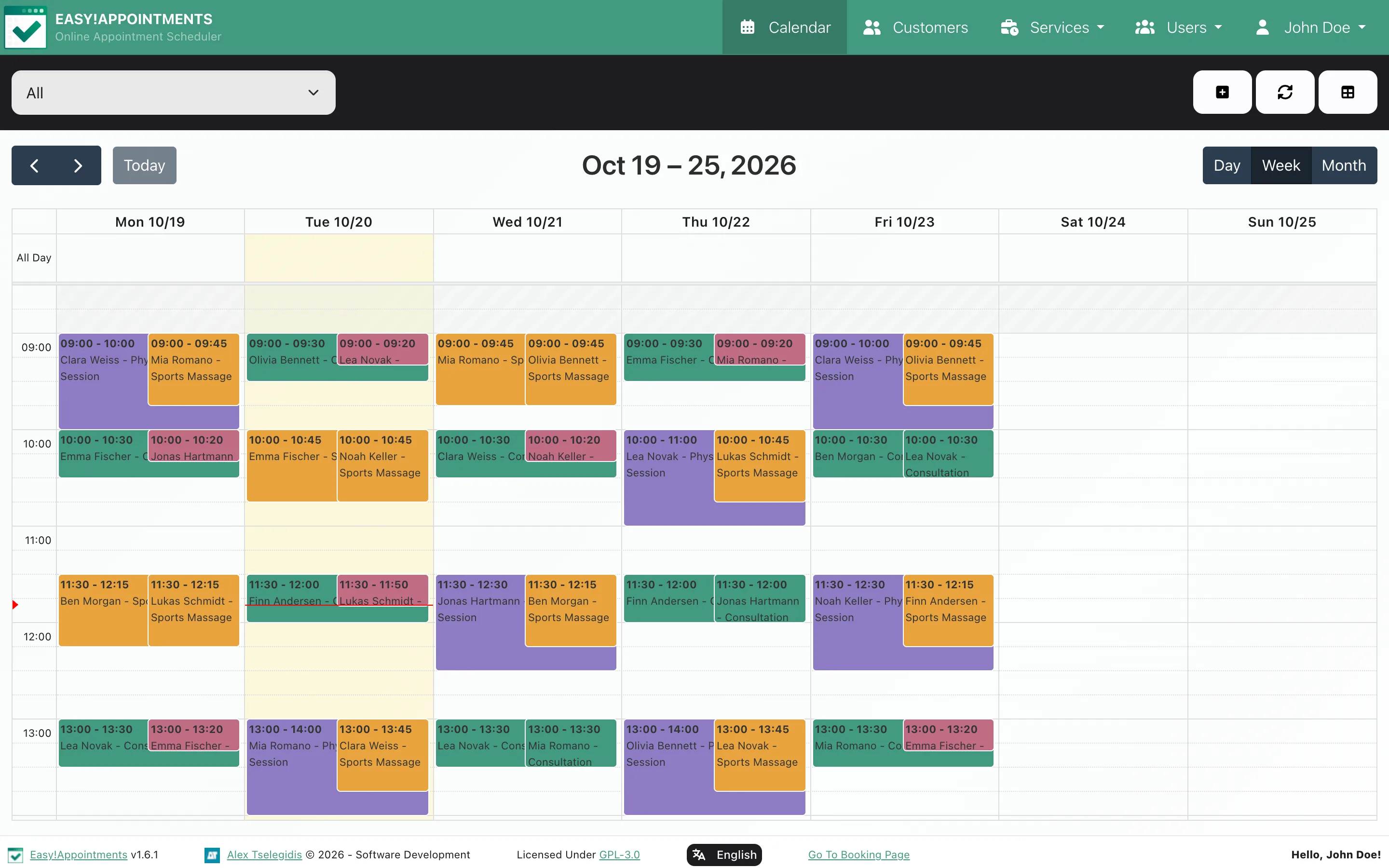
Appointments can be viewed in the Calendar section by administrators and providers.
Calendar Features:
- View Modes: Day, Week, Month
- Color-Coded Services: Each service appears with its assigned color.
- Tooltips: Clicking an appointment shows key details.
- Filtering: Filter by provider or service.
3. Adding Appointments Manually (Backend Users)
Admins, secretaries and providers can add appointments directly in the backend:
- Go to Calendar.
- Click on an empty time slot.
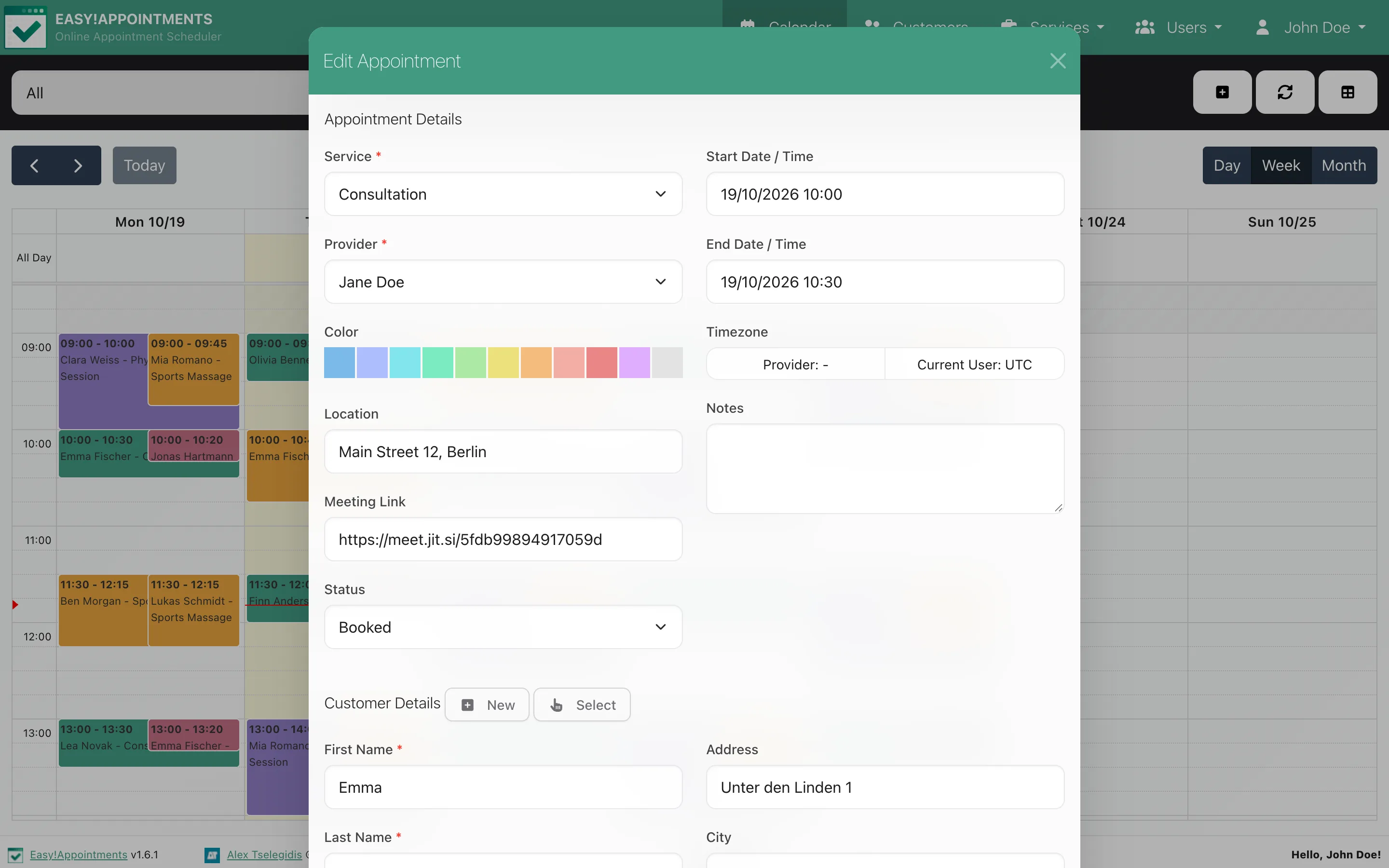
- Fill in the appointment form:
- Customer: Choose existing or create a new customer.
- Service: Select from available services.
- Provider: Choose the staff member.
- Date & Time: Set start time; duration will autofill.
- Status: Choose one from the available status options.
- Meeting link: For an online appointment, paste the link here. Since v1.6 a Jitsi link can be generated for you, and appointments synced with Google Calendar can carry a Google Meet link.
- Click Save.
Since v1.6 the notification email is not sent automatically every time: creating, changing or deleting an appointment from the calendar asks first whether the customer and provider should be told.
4. Editing or Cancelling Appointments
To Edit:
- Click on the appointment in the calendar.
- Modify any field (date, time, service, etc.).
- Click Save.
To Cancel:
- Open the appointment.
- Click Delete.
Deleting is what cancels an appointment and frees the time slot - the cancellation link in the customer’s email does the same. Setting the Status to “Cancelled” only changes the label: the slot stays blocked on the booking page and the customer gets an update email, not a cancellation.
Easy!Appointments asks whether to notify the provider and the customer, so a correction that does not concern them does not have to reach their inbox.
5. Appointment Statuses
Out of the box an appointment can have one of the following statuses:
- Booked
- Confirmed
- Rescheduled
- Cancelled
- Draft
The list is configurable under Settings > Business Logic > Appointment Status Options, and the first entry is the default for new appointments. A status is a label you set in the calendar - there is no manual approval step, so a booking made on the booking page is placed in the calendar straight away.
Last updated